noctune for Windows
What it does
noctune for Windows opens your noctune note in a panel beside your practice information management system (PIMS). It’s for practices whose PIMS is a program installed on Windows, or one that runs in a Remote Desktop or Citrix window, where the browser extension can’t reach. If your PIMS runs in Chrome, use the browser extension instead.
It works with Windows PIMS such as IDEXX Cornerstone, Covetrus AVImark, Covetrus ImproMed, DVMAX, ClienTrax, and IntraVet: anywhere you can click into a text field, on the computer itself or over Remote Desktop or Citrix.
Click a field in the patient record and press Ctrl+Shift+E. The next section of your note goes into that field. Press again in the next field for the next section.
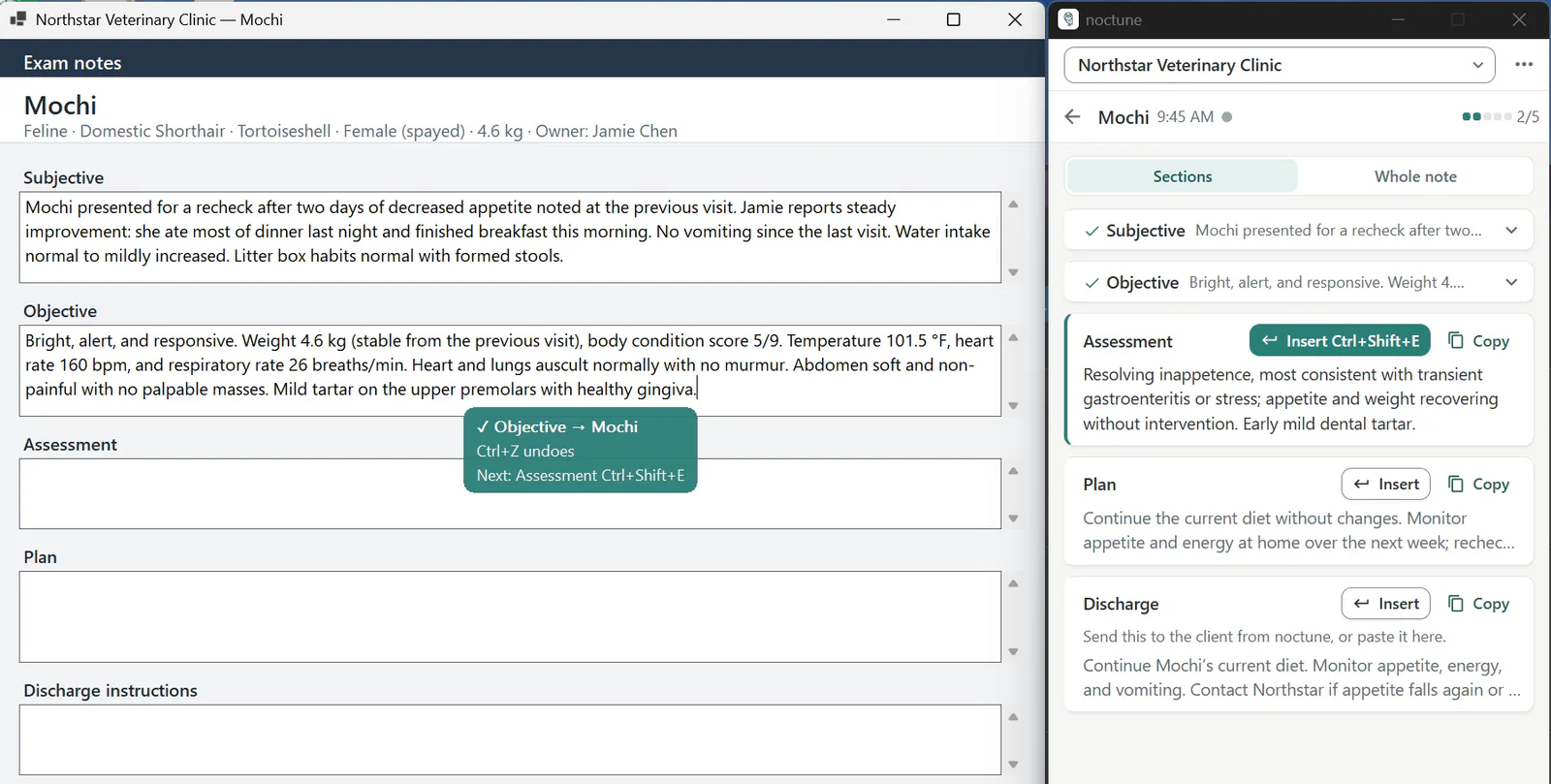
noctune never saves, submits, clicks, or presses Enter in your PIMS. The only keys it ever sends are Ctrl+V. When it can’t insert a section, it copies it and tells you, so you can paste it yourself. You still review the record and save it in your PIMS.
IDEXX Cornerstone, AVImark, ImproMed, DVMAX, ClienTrax, and IntraVet are trademarks of their respective owners. noctune is not affiliated with or endorsed by them.
Before you start
You need a Windows 10 or Windows 11 computer and a noctune account. If you don’t have one yet, sign up at app.noctune.ai . The installer adds the Microsoft Edge WebView2 runtime if your computer doesn’t already have it.
Get the app
Download for WindowsThis downloads the latest installer for your Windows account. To pick a specific file, use the table. Version 1.0.1 was released on November 11, 2026.
| File | For whom | Size | SHA-256 |
|---|---|---|---|
| noctune_1.0.1_x64-setup.exe | Anyone at the practice. Installs for your Windows account, needs no administrator rights, and keeps itself up to date. | 2.7 MB | 3d5d635e65df686758f67200a66a726bab7ad1b3ac1df3c1e68291dcd3da3039 |
| noctune_1.0.1_x64_en-US.msi | IT staff. Installs for everyone on the computer through Intune or Group Policy. It never updates itself: deploy each new MSI. | 3.9 MB | fdb8a6986d5fb5e462d7497d75352531dbcbdafb781af7de5d7c56a90902d85e |
SHA256SUMS.txt lists the same checksums.
Check the download
To confirm the file wasn’t changed on the way, open PowerShell in the folder you downloaded it to and run:
Get-FileHash .\noctune_1.0.1_x64-setup.exe -Algorithm SHA256The hash it prints should match the SHA-256 in the table.
Signed by Jonathan Ng. Windows shows Jonathan Ng as the publisher when you run the installer, and noctune shows the same name in Settings → About.
IT staff installing noctune inside a Remote Desktop or Citrix session image: email us first, as Remote Desktop and Citrix explains.
Install
There are two installers:
- The standard installer installs noctune for your Windows account only. It doesn’t need administrator rights, so anyone at the practice can run it.
- The MSI installs noctune for everyone on the computer. It’s for IT staff who deploy software with Intune or Group Policy.
Every noctune file is signed through Microsoft, and Windows names the publisher as Jonathan Ng, noctune’s founder. After you install, noctune starts and its panel opens.
The standard install keeps itself up to date. It checks for updates when it starts and once a day. An update found at start-up installs straight away. One found during the day downloads in the background, and the panel shows An update to noctune is ready; select Restart now, or it installs the next time noctune starts. An MSI install never updates itself: IT deploys each new MSI.
Sign in and choose a practice
Sign in with the same account you use for noctune on the web : Continue with Google, Continue with Apple, or your email and password.
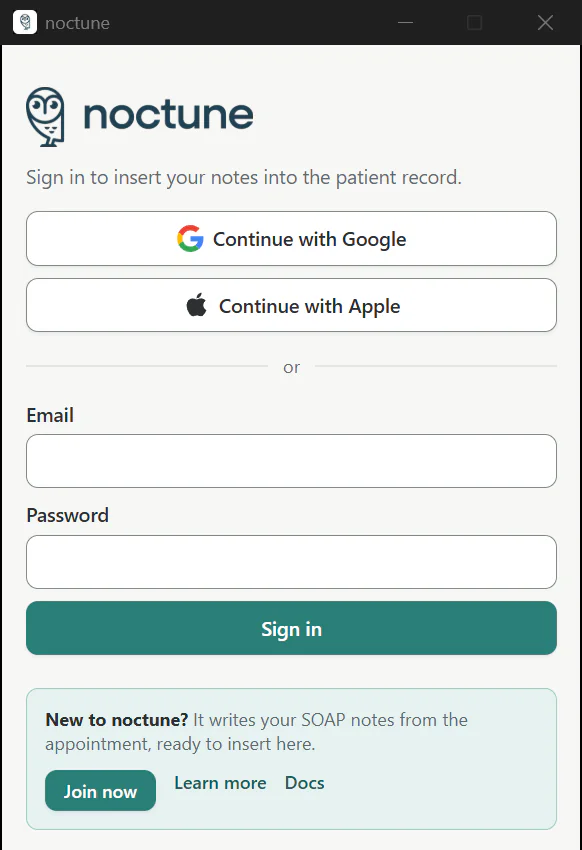
Google and Apple sign-in open your web browser. The panel shows Finish signing in in your browser, then come back here. When the browser asks to open noctune, allow it. If you close the browser instead, select Cancel in the panel and try again.
If you belong to a practice, use the dropdown at the top of the panel to choose where your notes come from: Personal for your own notes, or the practice’s name for its notes.
Insert a note
Pick a note from the list in the panel. Then:
- Open the patient record in your PIMS.
- Click a field, such as the Subjective box.
- Press Ctrl+Shift+E.
The first section goes into the field. Click the next field and press the shortcut again. Each press adds the next section.
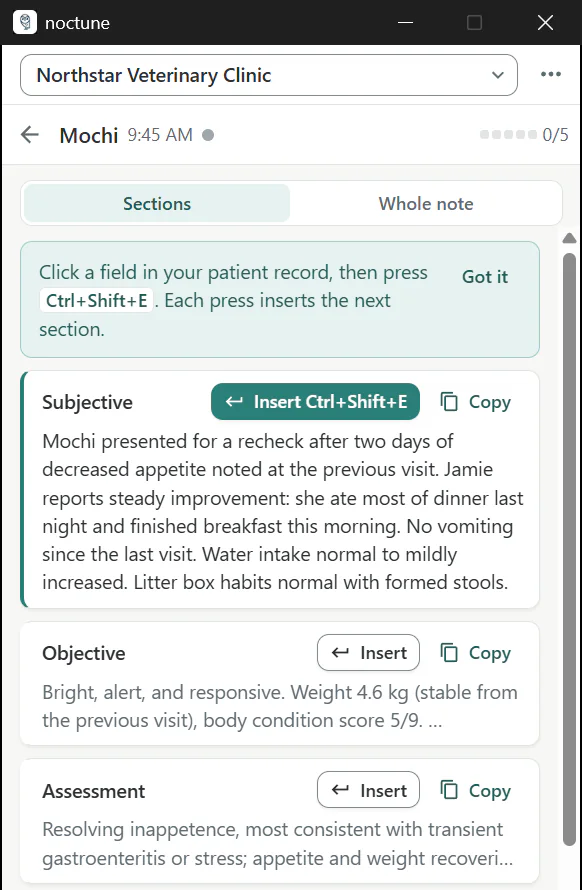
You can also select Insert on any section. Selecting it doesn’t take you out of your PIMS, so the section goes into the field you’re in.
If no note is open, the shortcut brings the panel up and the badge reads Open a note in the noctune panel first.
The badge
A small badge appears near the text cursor each time you press the shortcut. It tells you what went in and what comes next, for example ✓ Subjective → Mochi · Next: Objective Ctrl+Shift+E. It fades after a few seconds.
| Badge | What it means |
|---|---|
| ✓ Subjective → Mochi | The section went in, and noctune checked it’s in the field. |
| Still in the Subjective field. Press Ctrl+Shift+E again to add … | You didn’t move to a new field. Click the next field, or press again within a few seconds to add it to this one. |
| Copied Subjective — press Ctrl+V | noctune couldn’t insert, so it copied the section. Click the field and press Ctrl+V. |
| No field selected | Click into a field first, then press the shortcut. |
| Only part of Subjective fit in this field | The field has a length limit. Check what went in, and copy the rest from the panel. |
| Pasted Subjective — check it’s there | noctune pasted the section but couldn’t read the field back. Look at your PIMS to confirm it landed. |
| noctune can’t type into this program | Your PIMS runs as administrator. noctune copied the section; press Ctrl+V. See troubleshooting. |
A copied section stays next, so nothing is skipped.
Pasted — check it’s there
Some fields, and every field inside a Remote Desktop or Citrix window, don’t let noctune read them back after a paste. The section is ticked, but the panel says Pasted. noctune can’t check this field — make sure it’s there. and shows Insert again. Look at the record. If the text didn’t land, click the field and select Insert again. In a Remote Desktop or Citrix window, that copies the section, so press Ctrl+V in the field.
Undo an insert
To take text back out of a field, press Ctrl+Z in your PIMS, just like undoing your own typing.
To send a section again, select it in the panel. It becomes the next section, and your next press inserts it.
Track your progress
- The bar at the top of the note shows how many sections are in, such as 2/5.
- The next section stays open and highlighted. Sections that are in shrink to one line with a tick.
- Select any section to make it next. You can move through the note in any order.
- When every section is in, the panel shows All sections inserted. Select Start over to go through the note again.
Before you insert, check the patient name at the top of the note matches the record open in your PIMS. noctune for Windows doesn’t compare them for you yet.
Whole note mode and Copy
Some PIMS have one large box for the whole visit. Select Whole note at the top of the note, then click the box and press the shortcut once. The full note goes in, and every section is ticked. Select Sections to go back.
Every section also has a Copy button, so you can paste it anywhere yourself.
Settings
Open Settings from the ⋯ menu at the top of the panel (Change shortcut), or right-click the noctune icon in the notification area and select Settings….
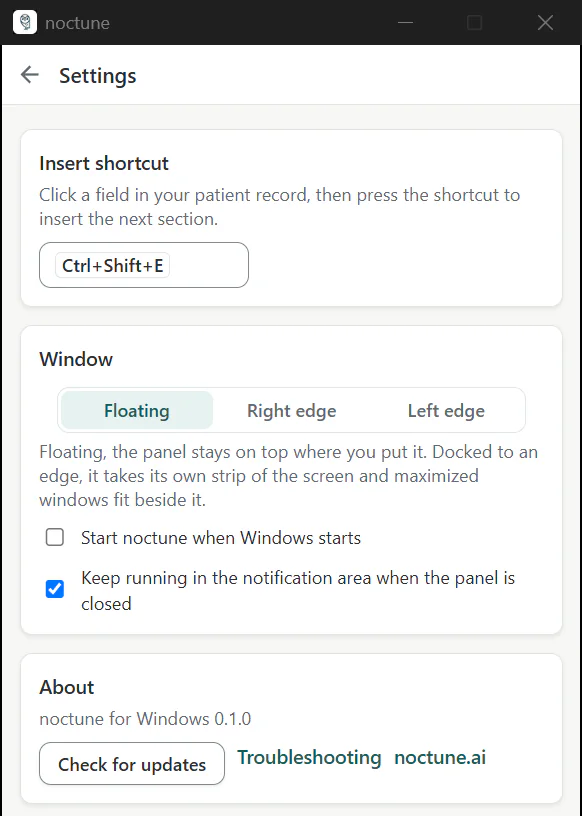
Insert shortcut
Select the shortcut box, then press the keys you want. Use Ctrl or Alt with a letter or number, or a function key. The Windows key can’t be part of the shortcut. Select Reset to Ctrl+Shift+E to go back to the default.
Where the shortcut works
By default the shortcut works in every program, and while noctune runs, other programs can’t use the same keys. To keep Ctrl+Shift+E free for Word and other programs, open your PIMS, come back to Settings, and select Only in followed by your PIMS’s program name. The shortcut then only works while that program is in front; everywhere else the keys do what they normally do. Select Use in every program to undo this.
Window
- Floating (the default): the panel stays on top of other windows, wherever you put it.
- Right edge or Left edge: the panel takes its own strip of the screen, and maximized windows shrink to fit beside it.
Start at login and the notification area
- Start noctune when Windows starts is on by default.
- Keep running in the notification area when the panel is closed is on by default. Closing the panel hides it to the notification area (the tray); your note list and sign-in stay. Right-click the noctune icon there for Show noctune, Settings…, and Quit noctune. With this setting off, closing the panel quits noctune.
About
Shows your noctune version, with Check for updates and a link to this page.
Troubleshooting
This section is for practices and their IT staff.
The shortcut does nothing
- Another program uses Ctrl+Shift+E. The panel shows a yellow strip saying so. Open Settings and record a different shortcut. Until then, use the panel’s Insert buttons.
- The shortcut is limited to some programs. Check Where the shortcut works. With programs listed there, the shortcut only works while one of them is in front.
- No note is open. Pick a note in the panel first; the shortcut inserts the note that’s open there.
“Click a field first”
noctune only inserts into a field that has the text cursor and accepts typing. It won’t insert into read-only, disabled, or password fields, and it never guesses. The section is copied instead: press Ctrl+V in the field you want.
“noctune can’t type into this program”
Your PIMS runs as administrator, and Windows doesn’t let a normal program type into it. noctune copies the section instead; press Ctrl+V.
For IT staff: don’t run noctune as administrator to get around this. It would ask for permission at every login, and an elevated program that sends keystrokes is a weaker setup than pasting by hand. If the PIMS doesn’t need to run elevated, running it normally fixes this.
Remote Desktop and Citrix
When your PIMS runs in a Remote Desktop or Citrix window, noctune can’t see the fields inside it. It pastes into the remote window from the shortcut only:
- The first time, press the shortcut and noctune asks you to confirm the window. Press it again.
- Each section is pasted, but noctune can’t check it landed. The panel marks it as pasted with an Insert again button; look at the PIMS to confirm.
- In a remote window, the panel’s Insert button copies the section instead of pasting it.
Two settings must be on in the remote client:
- Clipboard redirection (Remote Desktop: Local Resources → Clipboard; Citrix: client clipboard mapping). Without it, Ctrl+V in the remote PIMS pastes whatever that machine’s own clipboard holds, which could be another patient’s text. Copying from the panel doesn’t help either: the copy never reaches the remote session.
- Windows key combinations on this computer (Remote Desktop: Local Resources → Keyboard → On this computer), so the shortcut reaches noctune instead of the remote session.
noctune keeps its text out of this computer’s clipboard history, but once it crosses into the remote session, the remote machine’s own clipboard history can keep it. Turn off clipboard history on the remote host if that matters to your practice.
For a hosted PIMS without clipboard redirection, noctune can be installed inside the remote session image instead. Talk to us before doing this: it’s a separate setup we validate with each practice.
The panel
- It takes a strip of the screen. When docked to the right or left edge, maximized windows shrink to fit beside it. Choose Floating in Settings to have it over other windows instead.
- Closing it hides it to the notification area; the note list and your sign-in stay. Quit from the tray icon’s menu. With the tray turned off in Settings, closing quits.
- It starts at login unless you turn that off in Settings.
Antivirus and endpoint protection
noctune registers a global shortcut and sends Ctrl+V, which some endpoint tools flag. Every noctune file is signed. If a tool blocks it, allow the signed publisher Jonathan Ng (the name in Settings → About) rather than a file path or certificate thumbprint, so updates keep working: the certificate is renewed every few days, but the publisher stays the same.
Signing in
Google and Apple sign-in open your browser. When the browser asks to open noctune, allow it. If you close the browser instead, select Cancel in the panel and try again.
Privacy
What the app reads
- Your noctune notes, from noctune, after you sign in. Only the practice you pick is used.
- The field you’re in, when you insert: the program’s name, the field’s label, whether it accepts typing, and (to check the insert) the field’s text before and after. Field text is compared in memory and never stored or sent.
- Window titles are not read.
What the app keeps, and where
| What | Where | How long |
|---|---|---|
| Your sign-in (a session token) | %LOCALAPPDATA%\noctune\session.bin, encrypted with Windows DPAPI for your Windows account | Until you sign out |
| Settings: the shortcut, the programs it works in, where the panel sits, start at login, panel choices | %APPDATA%\noctune\settings.json | Until you change them |
| Notes, the note list, search results | The app’s memory only | Until you sign out or quit |
No note text is written to disk.
The clipboard
Inserting works by pasting, so a section is on the Windows clipboard for a moment:
- When an insert works, the section is there for the paste, then your previous clipboard is put back.
- When noctune copies instead (no field, a program running as administrator, a field that refused the text), the section stays on the clipboard for you to paste. It’s cleared after two minutes, when you sign out, or when you quit, if nothing else replaced it.
- In a Remote Desktop or Citrix window, the section stays on the clipboard after the paste and is cleared after two minutes.
Everything noctune puts on the clipboard is marked so Windows keeps it out of clipboard history (Win+V) and cloud clipboard sync. Any program running on the computer can still read the clipboard while the text is there, and a remote session’s own clipboard history is outside noctune’s control.
What the app sends
- Requests to noctune (
app.noctune.ai) and to noctune’s sign-in service, for your notes and your sign-in. - Update checks to
downloads.noctune.ai, once at start-up and once a day.
The app doesn’t send analytics, crash reports, field contents, or anything about the programs you use.