Find your way around and search everything
Use the global navigation to move between noctune workflows and the search field in the top bar to find records throughout the main signed-in workspace.
Expand or collapse navigation
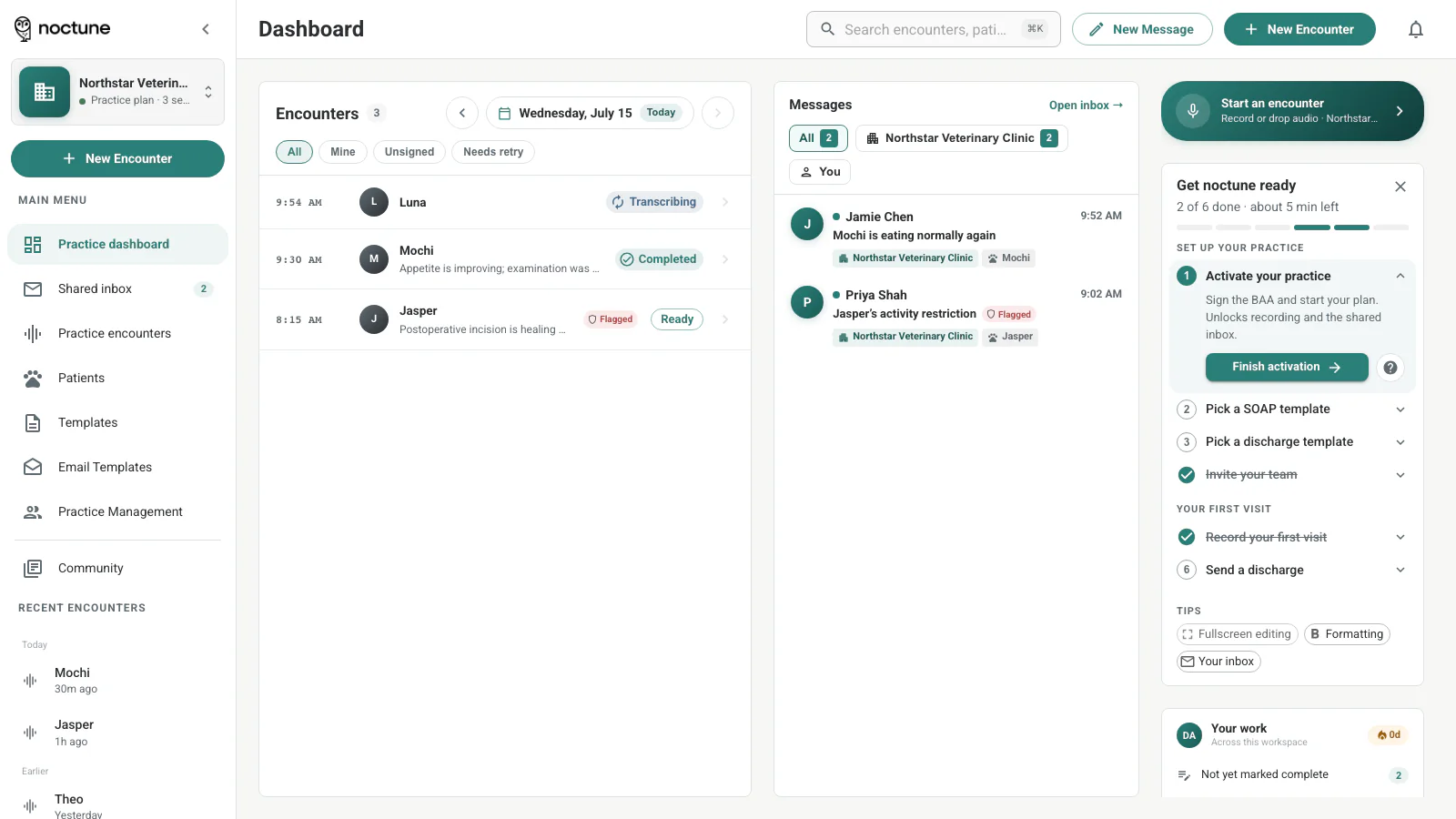
After a full page load, the navigation starts as a compact icon rail. Select the right chevron below the noctune logo to expand it. The expanded view adds text labels and a Recent Encounters list with up to five completed encounters.
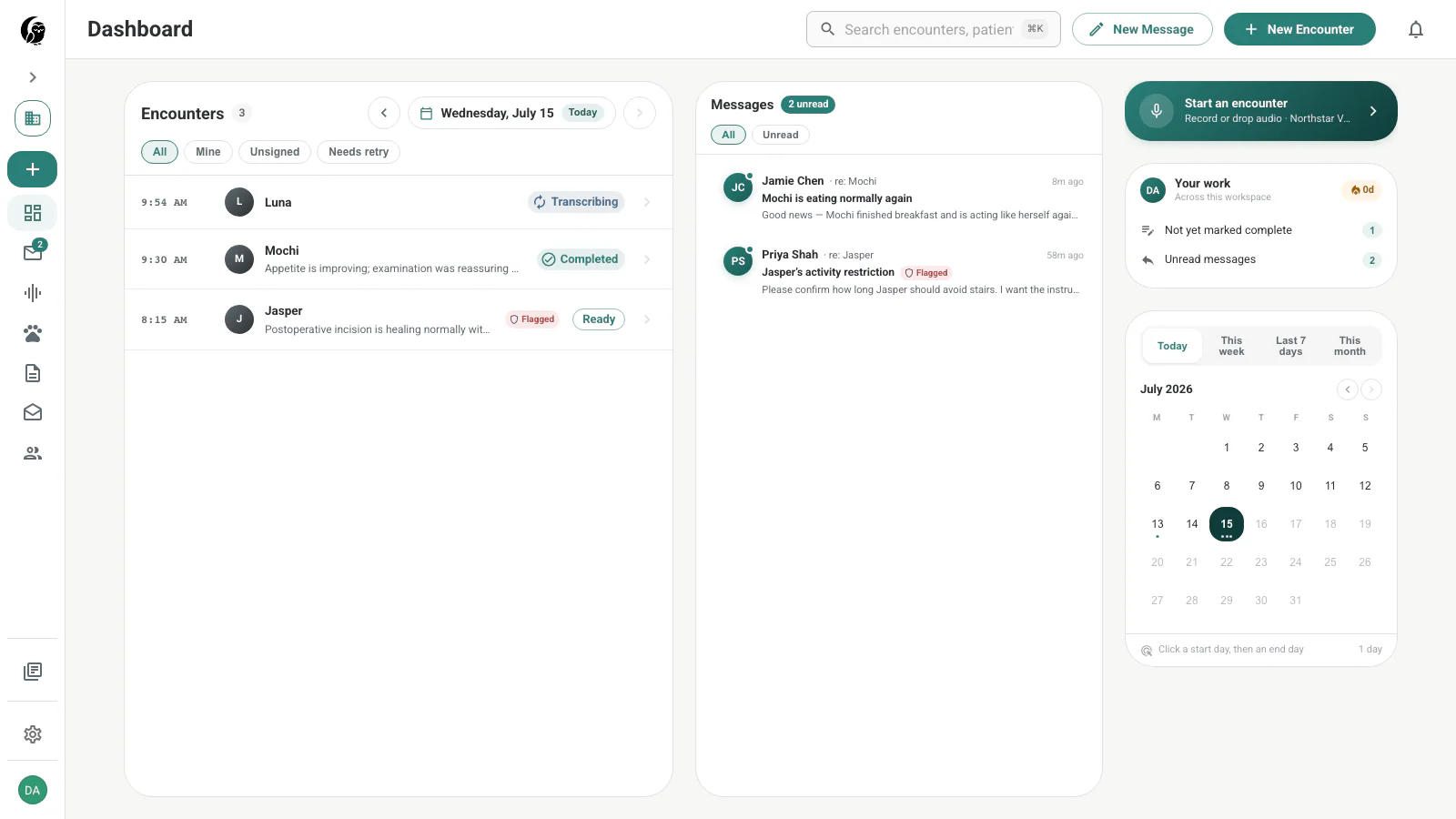
Select the left chevron beside the horizontal logo to collapse the navigation again. In the compact view, hover over an icon to see its name.
Search from the top bar
Select Search encounters, patients, messages in the top bar, or press Command-K on macOS or Ctrl-K on Windows and Linux. Start typing a patient, owner, recent message sender, microchip ID, symptom, condition, drug, or clinical phrase.
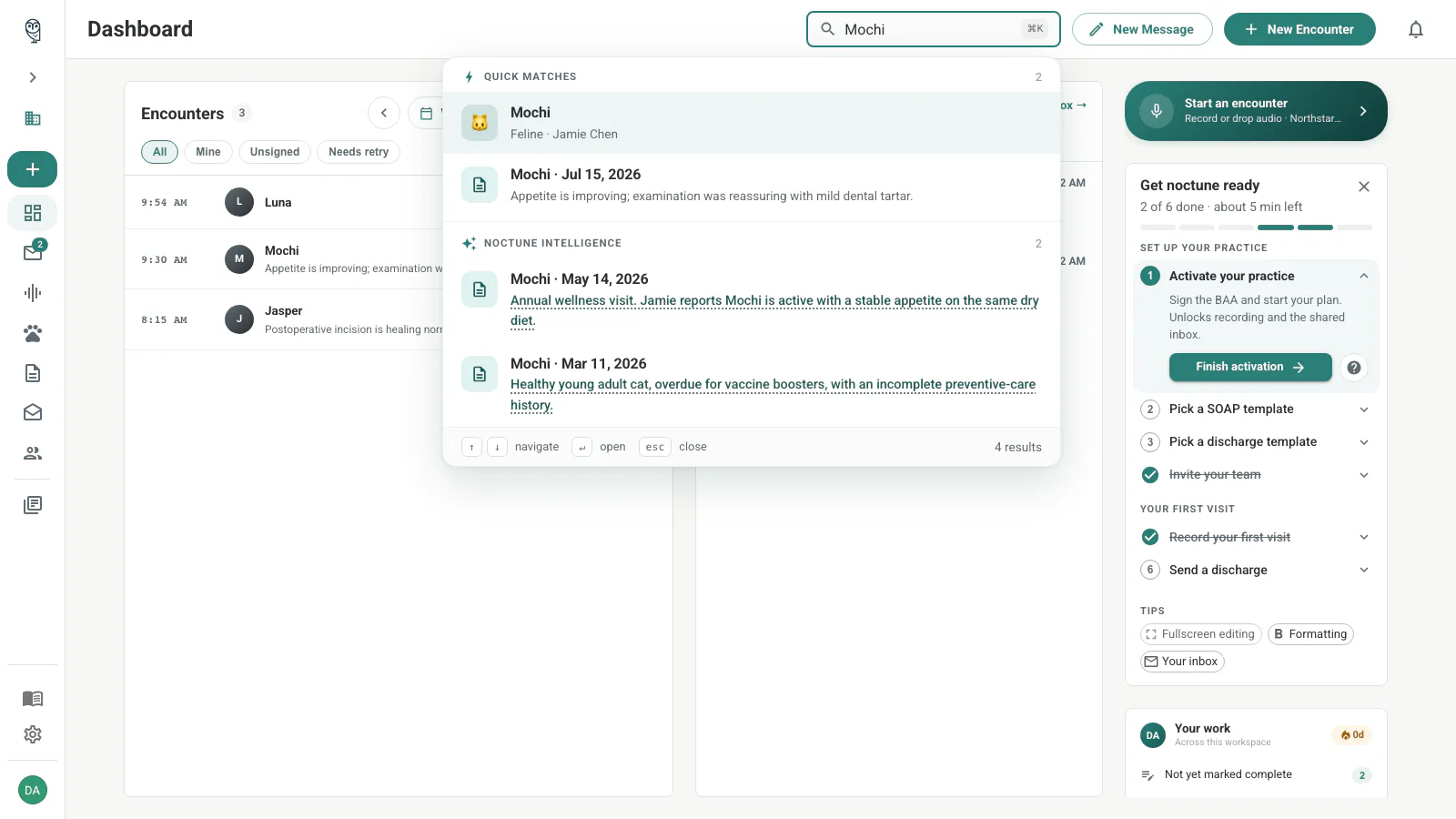
Global search uses two complementary layers:
| Layer | When it starts | What it searches |
|---|---|---|
| Quick matches | After the first character | Case-insensitive text within patient and owner names, patient names on recent encounters, and recent message sender names or fallback addresses. Up to three matches can appear before full search returns. |
| Full search | After two characters | Patient, owner, and microchip text plus meaning-based matches from indexed SOAP notes and transcripts. |
Direct text matches
Direct matching looks for the characters you typed, without fuzzy or semantic scoring. Quick matches use a lightweight index of active patients and recent work, so they are convenient rather than an exhaustive record search. The first use may take a moment while that index loads. Full-search patient results check active patient names, owner names, and microchip IDs.
Global message matches cover recent displayed senders—usually a sender name, or the address when no name is available. To search message subjects, bodies, sender names, or sender addresses, use Search messages on the Messages page.
Meaning-based encounter search
For encounters, noctune converts indexed SOAP-note and transcript passages into vectors: numerical representations of their meaning. It compares the meaning of your query with those passages, ranks the closest matches, and shows the best passage from each matching encounter. This can surface a relevant encounter even when it does not contain the exact words you entered.
Meaning-based search returns passages and links to source encounters; it does not generate an answer. Treat relevance as a lead rather than a clinical conclusion, and open the encounter to confirm its context. New or edited encounter content may take a little time to appear while its search index updates.
Search only shows records you can access. Patient and encounter results follow your selected personal or practice workspace.
Keyboard controls
- Up Arrow or Down Arrow moves through the combined result list.
- Enter opens the selected result.
- Escape closes the results.
When you focus an empty search field, Recent can show up to three results previously opened in that browser.