Copy your discharges to a clinic inbox
Many practices keep a copy of every discharge in a shared inbox so it can be filed in the PIMS. noctune can add that inbox as a hidden copy (Bcc) on each discharge you send to a client, so you don’t have to type it every time.
You can copy discharges in two ways:
- Bcc one send. Add an address under Bcc in the send window. It gets that discharge only.
- Always Bcc. Save an address once. After the address is confirmed, it gets a hidden copy of every discharge you send, from the website or the iPhone app.
To get the discharge draft by email when a note is ready, before anything goes to the client, see Email me the discharge too.
Always Bcc a clinic inbox
- On a ready encounter, open the Discharge Notes tab, choose Send Email, then Send discharge notes. The Send Discharge Notes window opens.
- Add the client under To. Choose Bcc at the right end of the To field, then type the clinic inbox address in the Bcc field.
- Tick Always Bcc this address. The window explains what happens next: “We’ll send address a confirmation link. Once confirmed, it gets a hidden copy of every discharge you send, from web or iPhone. Change this in Settings → Account.”
- Choose Send + Complete, or Send only from the dropdown. After the encounter is completed, the button is Send.
- This discharge goes to the Bcc address straight away. noctune then saves the address and emails it a confirmation link, and the message after sending reads “Sent. Check address for the confirmation link.” Hidden copies of later discharges start once someone with access to that inbox confirms the address.
- To change or remove the address, go to Settings → Account and find Copy every discharge I send. See Discharge copy addresses.
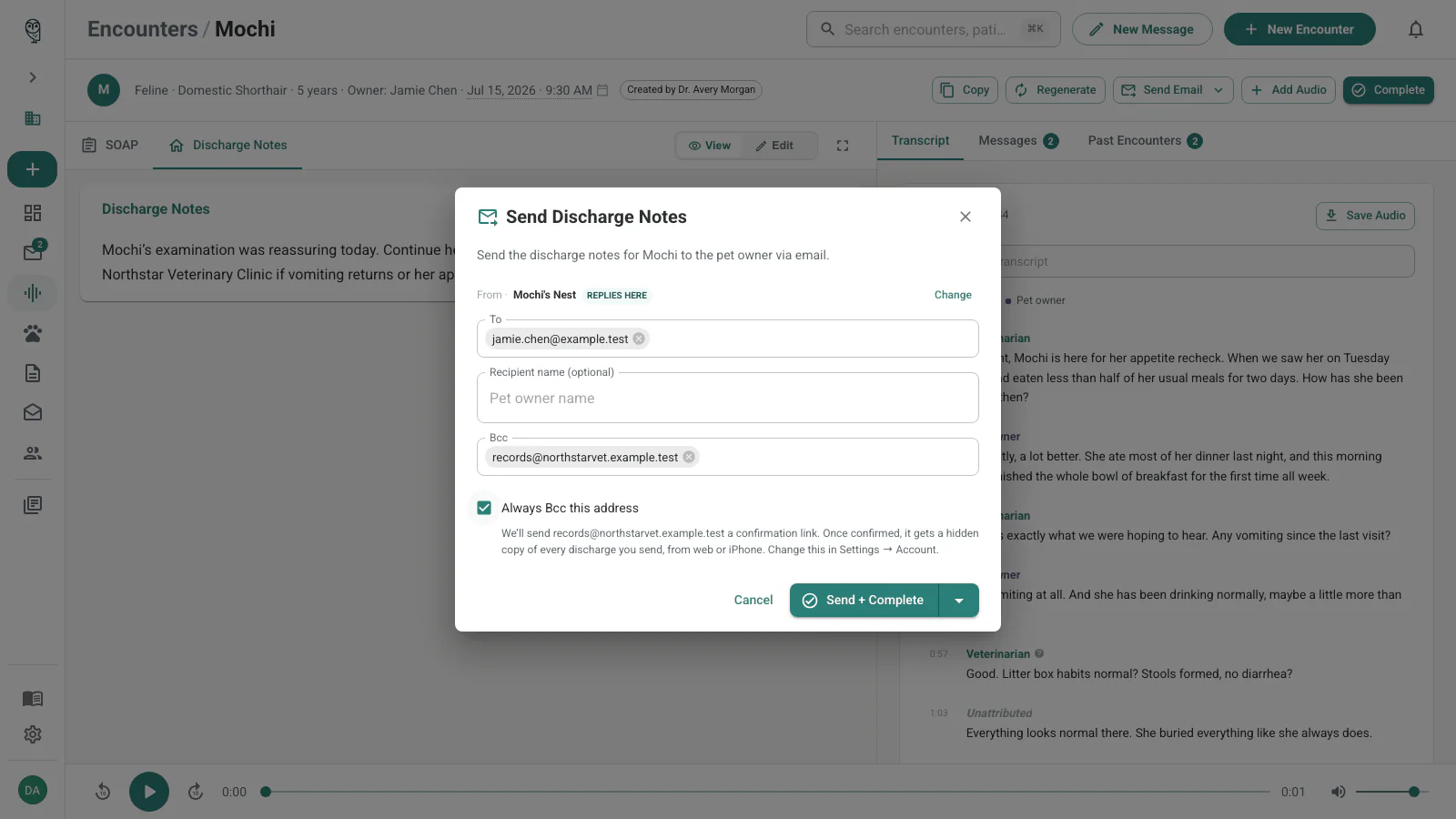
Always Bcc this address appears only when the Bcc field holds exactly one valid address that isn’t already saved. If noctune can’t save the address, the discharge is still sent, and the message after sending gives the reason. For example, the list may already be full.
You can also add addresses directly in Account settings without sending a discharge.
What the send window shows
Saved addresses aren’t added to the Bcc field. noctune adds them when it sends. One line under To shows where saved copies go:
- Waiting for address to confirm. The address hasn’t confirmed yet and gets no automatic copies. Choose Resend link to email a new confirmation link.
- A hidden copy also goes to address. The address is confirmed and will get this discharge. Choose Manage to open Account settings.
The client never sees the hidden copies. An address that’s already in To or Bcc isn’t sent a second copy.
Saved copies also apply to discharges you send from the iPhone app, because noctune adds them when it sends the email.
For the person receiving copies
This section is for whoever looks after the inbox that receives copies, such as a practice manager or IT.
The confirmation email
When a veterinarian adds your address, you get an email from noctune titled Confirm this address for discharge copies, or Confirm this address for discharge drafts for discharge drafts. It says who is asking, that copies include pet and client details, and that the link works for 7 days. Choose Review and confirm to open the confirmation page. You don’t need a noctune account.
If you don’t recognize the request, ignore the email. noctune sends nothing to an address until someone confirms it.
The confirmation page
The page asks Send discharge copies to this address? (or Send discharge drafts to this address?). It names the veterinarian, and their clinic when they have one, and shows the address. It also shows how long the link has left.
- Opening the page changes nothing, so a mail security scanner that follows the link can’t confirm it. Only the Confirm button does.
- After you choose Confirm, the page reads You’re set. Copies start with the next discharge.
- Let us know on the page opens an email to noctune support if you weren’t expecting the request.
Confirming for discharge copies doesn’t sign the address up for discharge drafts, and confirming for drafts doesn’t sign it up for copies. Each needs its own confirmation.
If the link no longer works
The page reads This link no longer works when:
- the link is more than 7 days old,
- the veterinarian sent a newer link, which replaces the old one, or
- the address was removed.
Nothing has been sent to the address. Ask the veterinarian to send a new confirmation from noctune. Opening the link again after you’ve confirmed shows You’re set.
What copies look like
- Discharge copies are hidden copies of the discharge email the client receives, sent at the same time.
- Discharge drafts arrive when a note is ready, before anything goes to the client. Each one is titled Discharge draft with the pet’s name, says who shared it, and says it hasn’t been sent to the client.
Stopping copies
Copies have no unsubscribe link. To stop them, ask the veterinarian to remove your address in noctune. Once it’s removed, nothing more is sent to it.
Limits and privacy
- Copies and drafts include pet and client details. Add only inboxes your practice controls.
- You can save up to 5 addresses for discharge copies and up to 5 for discharge drafts.
- Each send can go to at most 50 addresses across To and Bcc, including saved copies. If saved copies would go over that limit, the send is blocked with an error.
- A Bcc address typed for one send gets that discharge right away, without confirmation. Only saved addresses need to be confirmed.
- Deleting your noctune account removes your saved addresses.