Encounters
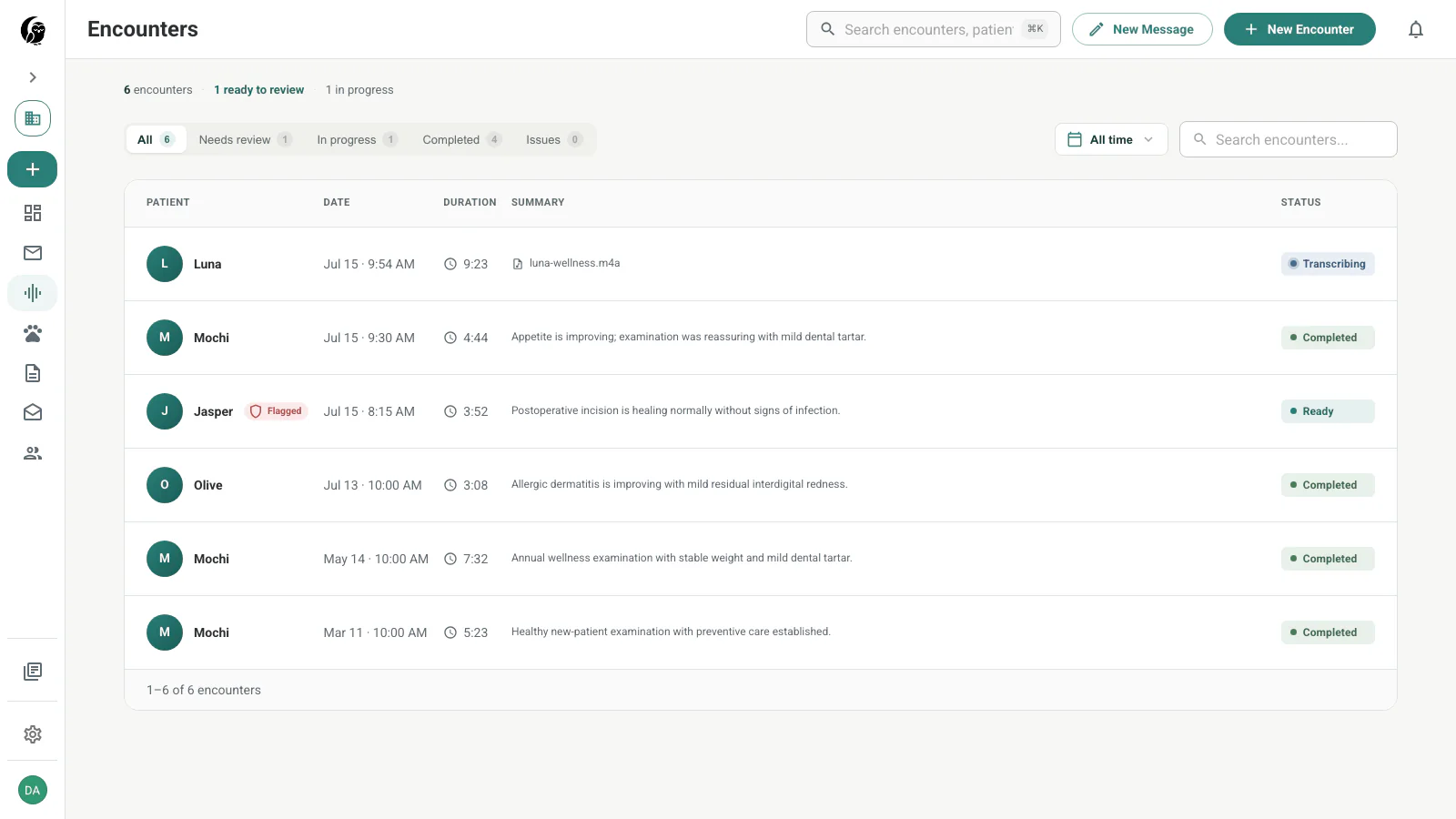
An encounter is one appointment and its audio, transcript, generated notes, messages, and patient context. The Encounters page is the complete work queue.
Encounter workflow
1. Upload or record the appointment
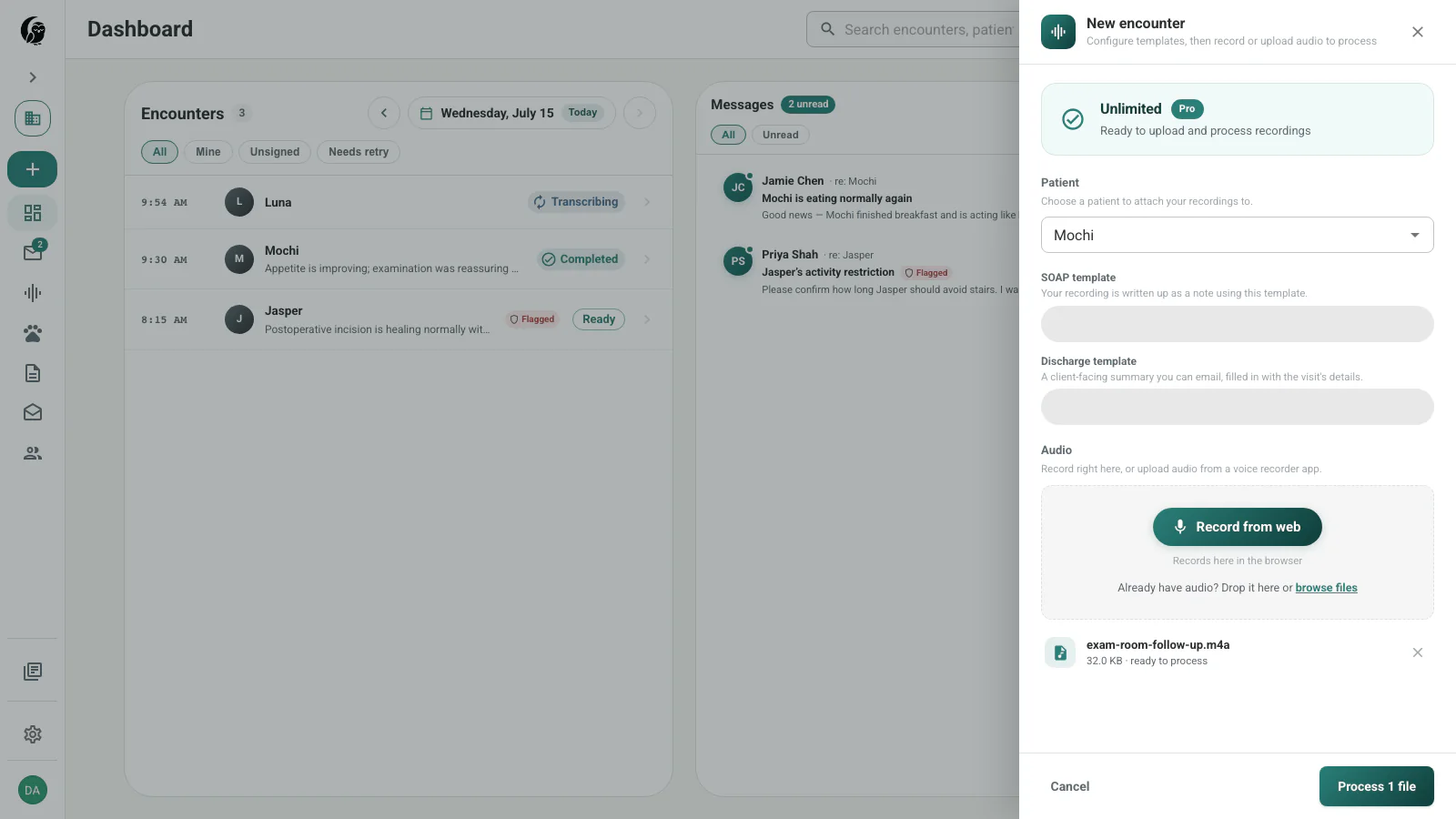
Start a New Encounter, select the patient and note templates, then record in the browser or add existing audio. Review the queue and choose Process file or Process files.
2. Let noctune process the recording
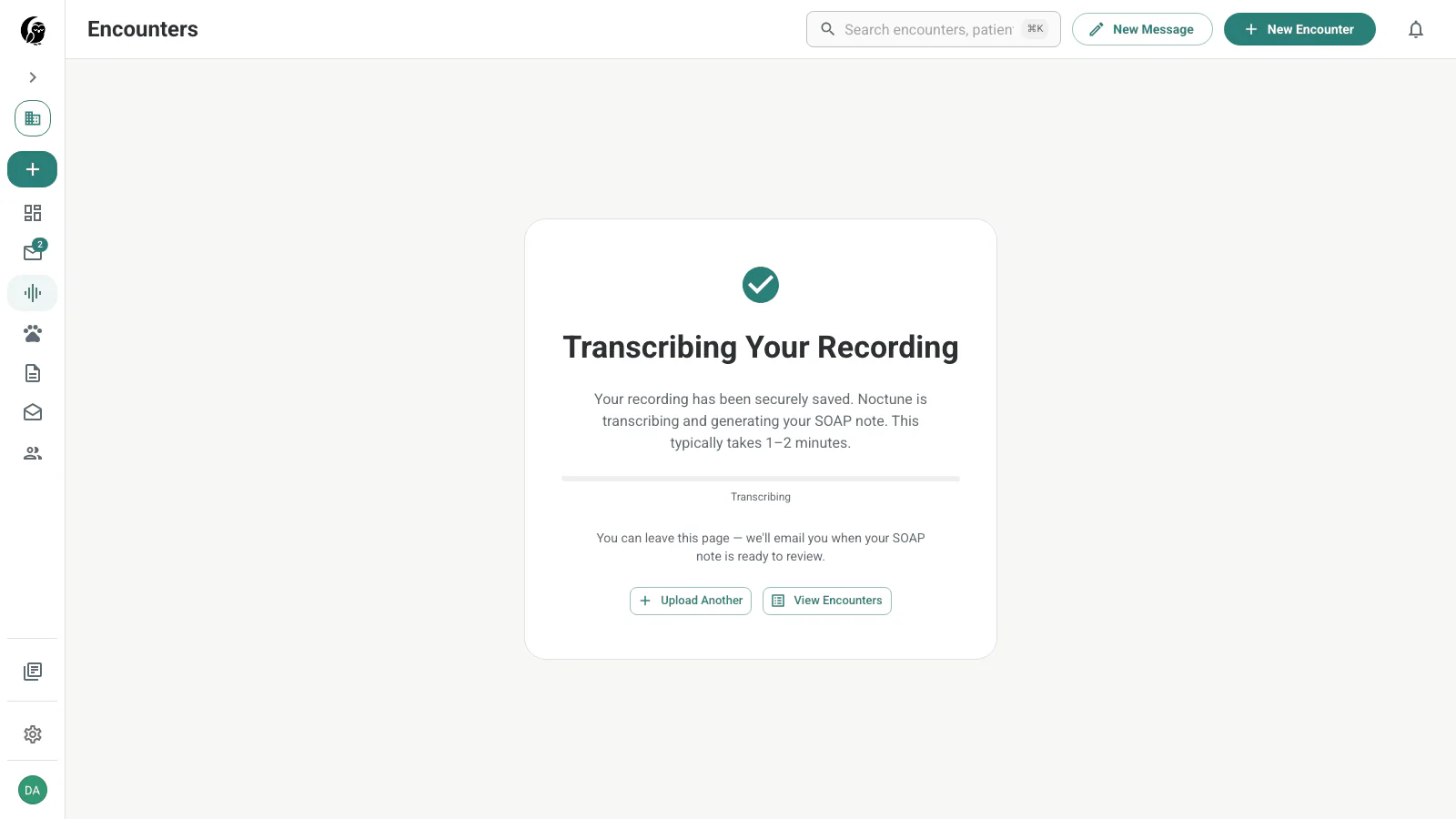
noctune securely saves the audio, transcribes it, and generates the SOAP and discharge notes. You can leave the processing screen and return from the Encounters queue when the draft is ready.
3. Review the generated note
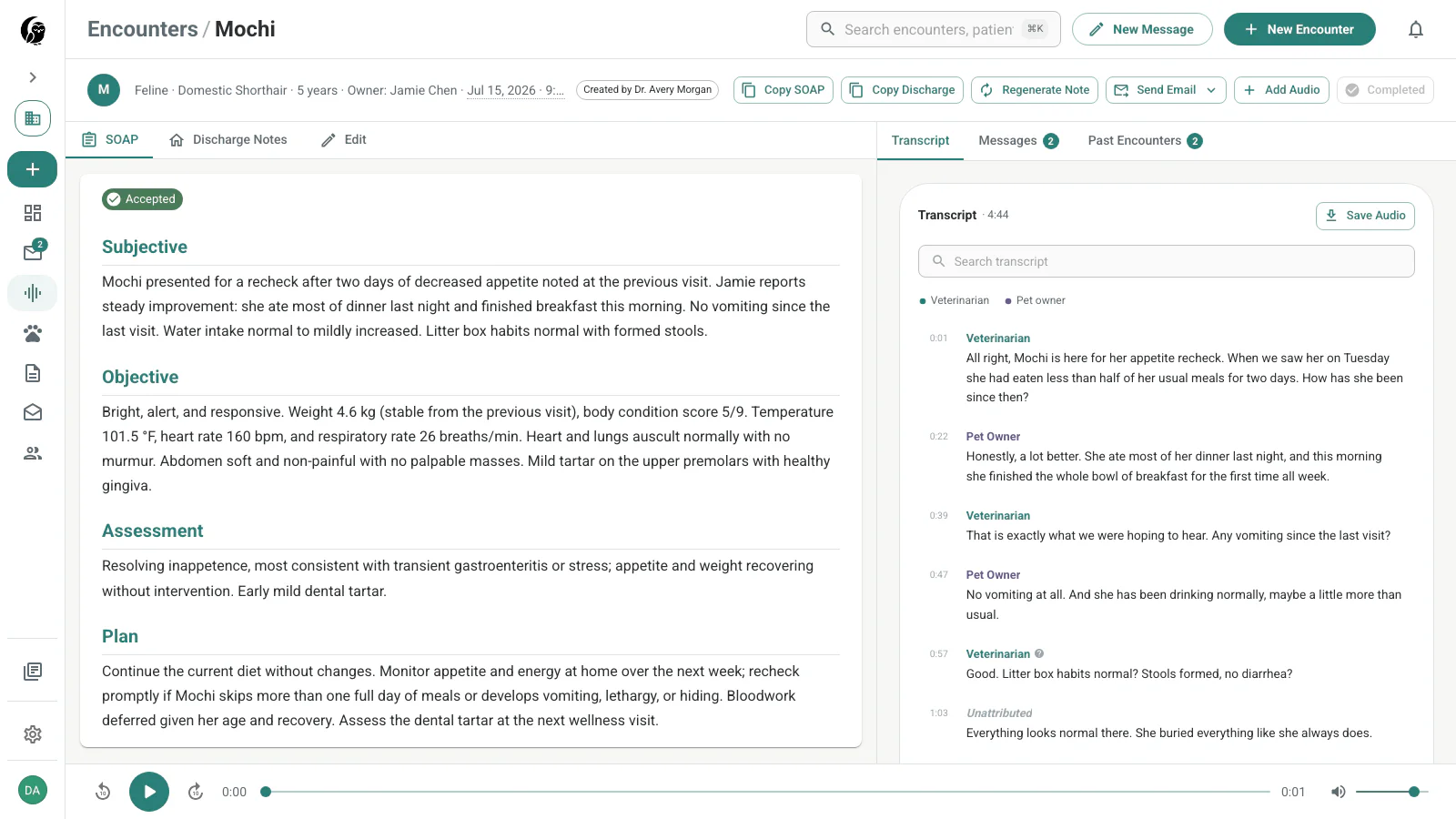
When the encounter moves to Needs review, open it and verify the SOAP note against the transcript and audio. Patient details and the main actions remain visible at the top.
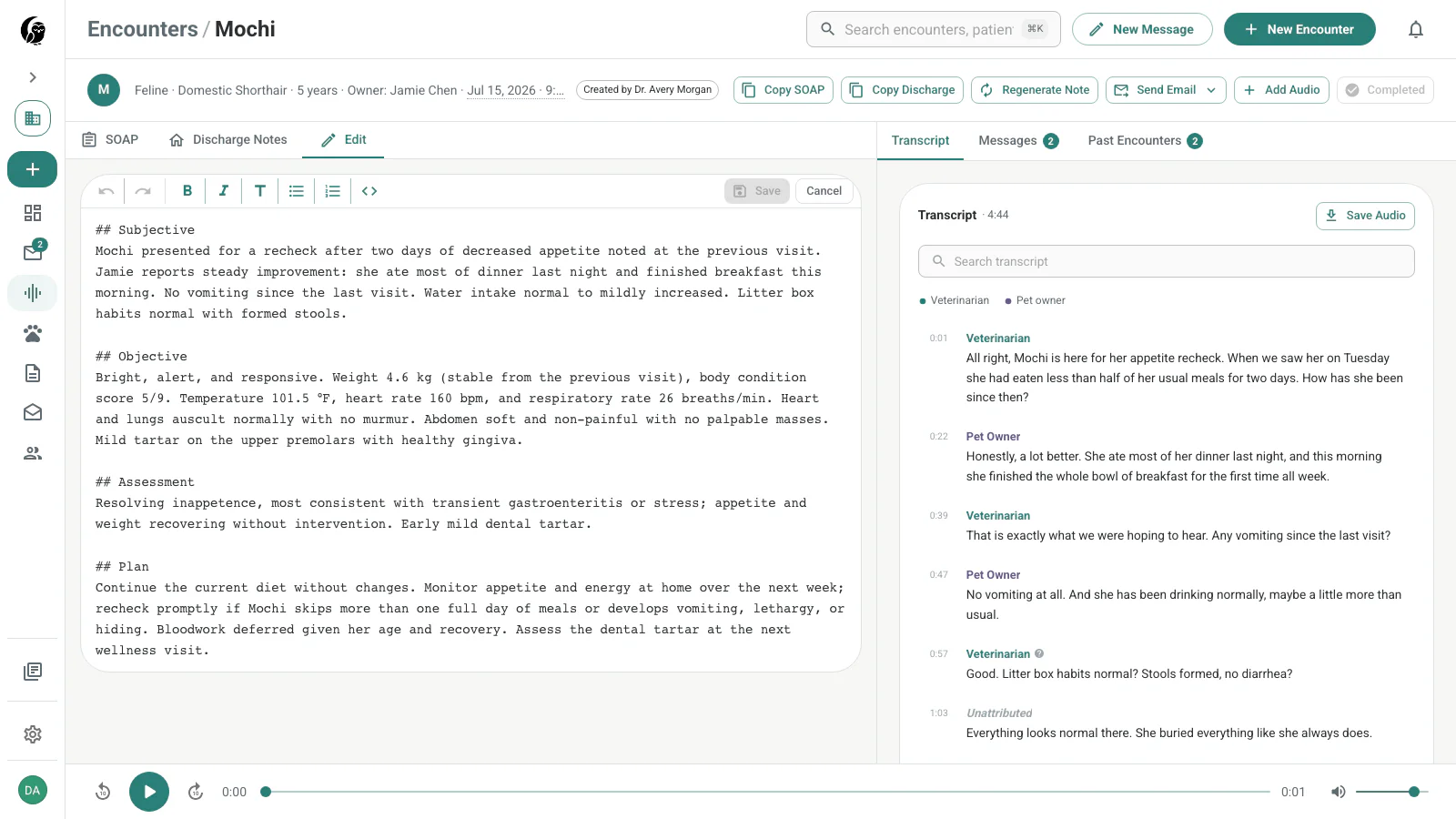
4. Edit and save
Use Edit for any corrections, then choose Save. Saving creates an audited note version but keeps the encounter open until you complete it.
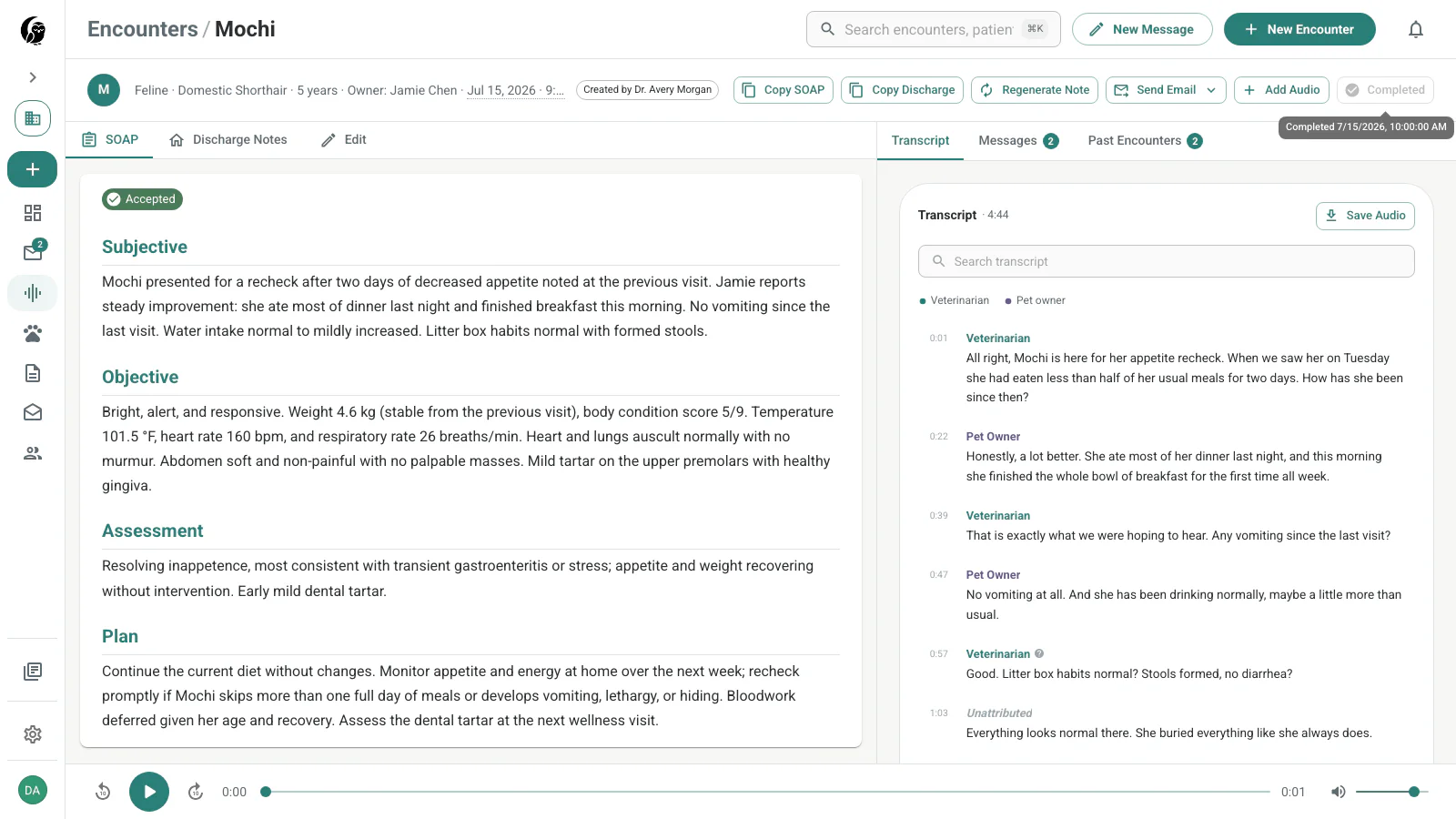
5. Complete the review
Choose Complete when the clinical record is ready. The action changes to Completed, while the note, transcript, and communication tools remain available.
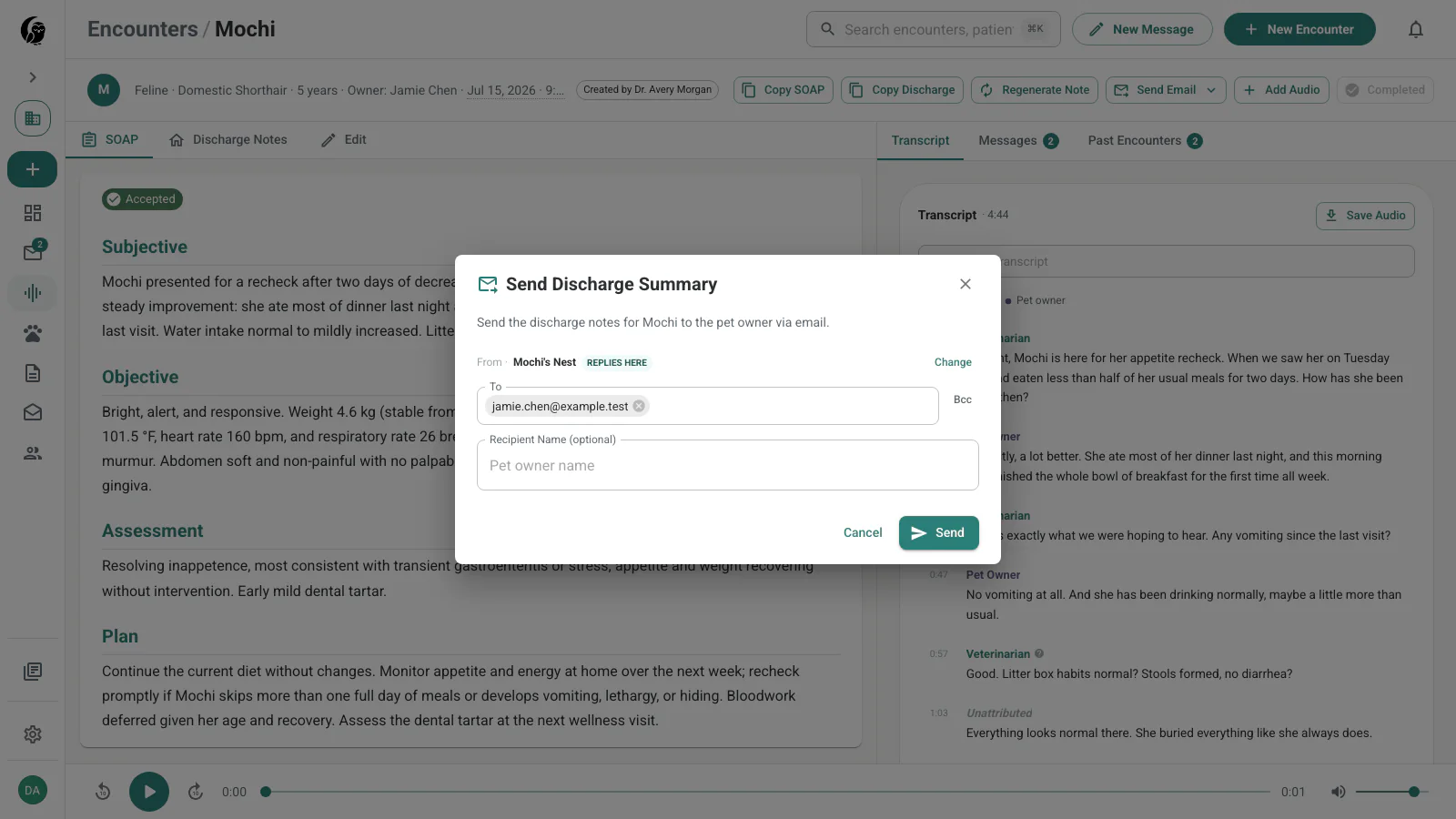
6. Send the discharge summary
Open Send Email and choose Send discharge notes. Add the recipient and send the client-facing summary. If you open the discharge dialog before completing the encounter, Send + Complete performs both actions together; after completion, the action is Send.
Encounter states
- In progress means noctune is uploading, transcribing, or generating notes.
- Needs review means the draft is ready for a clinician.
- Completed means the encounter has been reviewed and finished.
- Issues collects encounters that need a retry or another corrective action.
The status displayed on an individual row can be more specific, such as Transcribing, Ready, or Completed.
Filter, date, and search
Use All, Needs review, In progress, Completed, and Issues to narrow the queue. The date control can limit results to a recent range or show All time.
Search matches the patient name or source audio filename. It does not search the transcript, owner name, or teammate name.
Open an encounter
Choose a row to open the review workspace. The SOAP note is on the left; transcript, messages, and prior visits are on the right. See Review & Edit for the available actions.
In this section
- New Encounter — record or queue audio
- Review & Edit — verify the transcript, edit notes, and finish the encounter