Build one note together without overwriting each other
A busy appointment rarely has one author. A technician takes the history, the veterinarian examines the patient, and the technician comes back later with treatments and discharge instructions. In noctune, everyone in the practice can add to the same note while it stays one clear record. Edits you make are protected, and later recordings can’t quietly undo them.
Here is how a typical visit comes together:
- The technician records the history. noctune drafts the note. The technician fixes a detail in Subjective, which locks that section to protect the change.
- The veterinarian records the exam. noctune updates the sections nobody has edited and leaves the technician’s history alone. The veterinarian corrects the Objective findings, which locks them too.
- The technician records treatments and discharge instructions. noctune fills in the Plan and discharge notes. If the new recording mentions something that belongs in the veterinarian’s locked exam, noctune shows it as a suggestion. The veterinarian decides whether to apply it.
Each recording creates a new version of the note, labeled with who added it, so you can always see how the note got where it is.
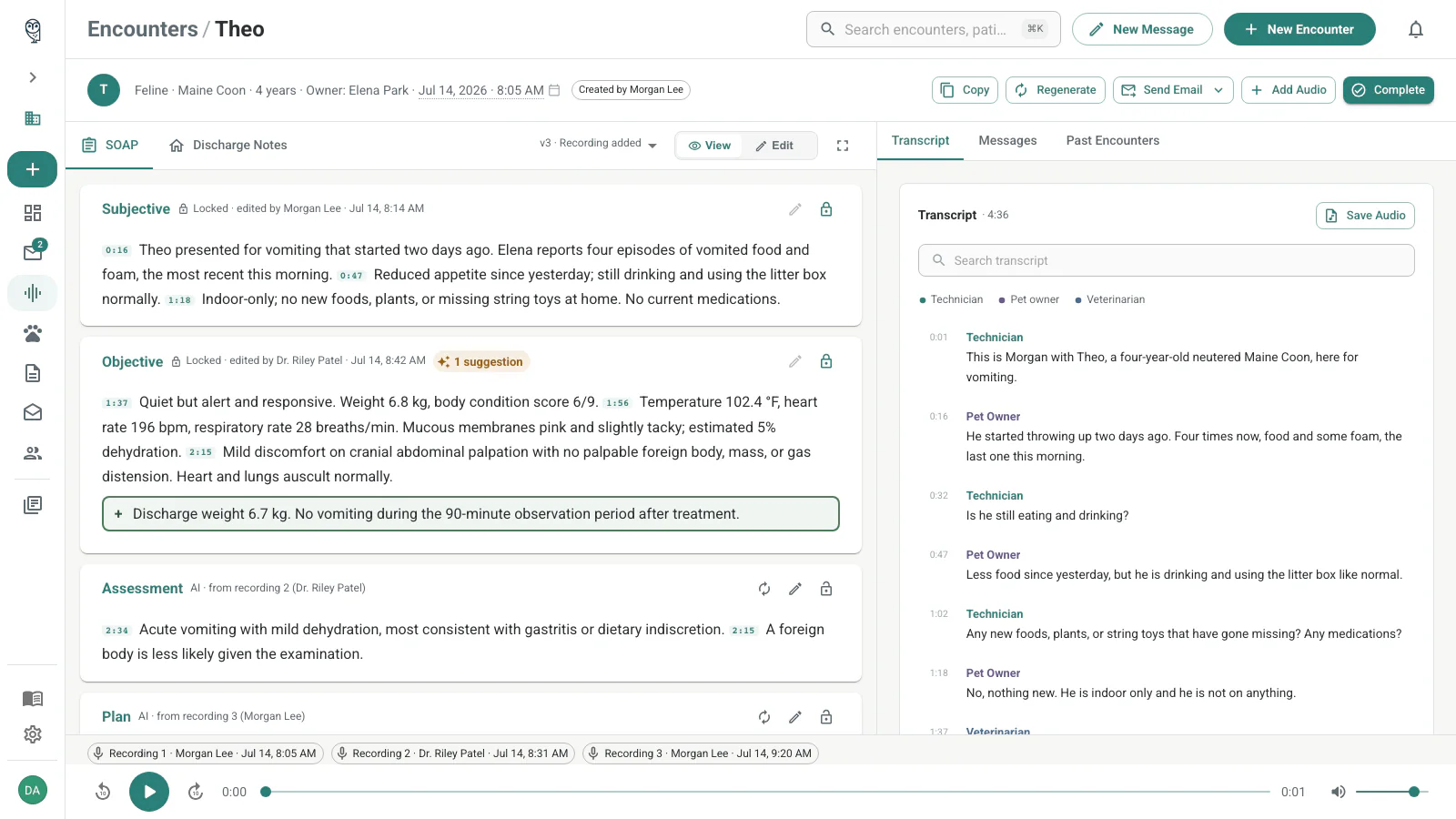
Read the note section by section
The SOAP note appears as one card per heading, such as Subjective, Objective, Assessment, and Plan. The discharge notes appear as their own card on the Discharge Notes tab. Anyone in the practice can help draft the note; a member with a paid seat sends discharge notes to the client. A short label beside each heading tells you where the text came from:
- Locked · edited by Morgan Lee · 8:14 AM: a person edited this section, and it’s protected from new recordings.
- Locked by Dr. Riley Patel · 8:42 AM: someone locked the section without changing it.
- Edited by Morgan Lee · 8:14 AM: a person edited this section and then unlocked it, so new recordings can update it again.
- AI · from recording 2 (Dr. Riley Patel): noctune wrote this section from that recording, and nobody has edited it since.
Times from an earlier day include the date, for example Jul 14, 8:14 AM.
Each card has its own buttons:
- Edit (pencil) opens just that section. Choose Save to keep your change, or Cancel to discard it.
- Lock (padlock) protects the section without editing it, or unlocks it again.
- Regenerate (circular arrows) asks noctune to rewrite just that section. It appears only on unlocked SOAP sections. See Regenerate one section.
To work on everything at once, switch the View / Edit toggle above the note to Edit. This opens the whole-note editor described in Review & Edit. Sections you change there lock the same way.
Add recordings as a team
Anyone in the practice who can open the encounter can choose Add Audio to add another recording, whether it’s a technician’s intake, the veterinarian’s exam, or a later treatment update. noctune keeps every recording with the encounter and remembers who added it.
When an encounter has more than one recording, chips above the audio player list them, for example Recording 2 · Dr. Riley Patel · 8:31 AM. Select a chip to jump the audio to the start of that recording. Section labels name the recording that wrote them, so you can tell which part of the visit each paragraph came from.
Section locks and who can unlock them
Editing a section locks it automatically. A locked section is protected: new recordings and regenerations can’t change it. This also applies to edits made in the noctune iPhone and iPad app.
- You can always edit or unlock a section you locked yourself.
- Anyone with access to edit the encounter can unlock a colleague’s section with the padlock before editing it. The section shows who locked it, so the change is explicit.
- If someone locks a section while you’re editing it, noctune tells you when you save. Choose Unlock and save to explicitly keep your change.
Lock a section without editing it when you’re happy with what noctune wrote and want to keep it as is.
How new recordings update the note
The first recording produces a full draft. After that, what happens depends on whether anyone has started working on the note:
- Nobody has edited or locked anything yet. Add Audio and Regenerate produce a fresh draft from the whole visit, just as they do for a single-person note.
- Someone has edited or locked a section. noctune switches to updating. It rewrites only the unlocked sections using the new material and leaves locked sections exactly as they are.
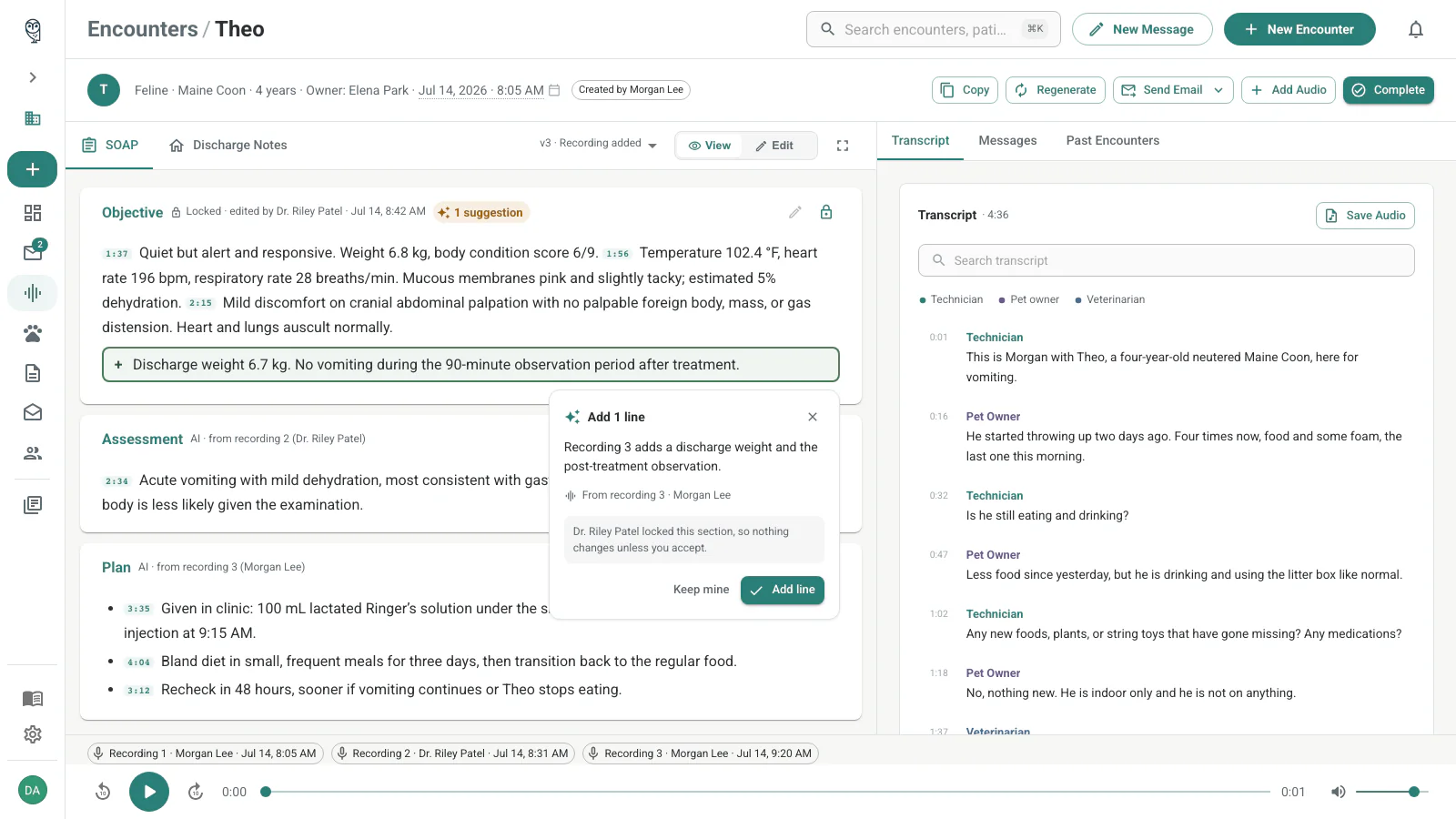
If a new recording contains something that belongs in a locked section, noctune doesn’t change that section. It highlights the proposed changes in the note and shows a suggestion card with the source, for example From recording 3 · Morgan Lee. Added lines are highlighted, removed lines are crossed out, and a short note explains why. A suggestion chip in the section heading opens the review card; Hide suggestion collapses the card without accepting or rejecting the change.
- Add line, Replace line, Remove line, or Apply changes applies the proposed change. The label describes what will happen. The section stays locked, now as your edit.
- Keep mine removes the suggestion and leaves the section unchanged.
If a suggestion changes a section someone else locked, noctune asks you to Unlock and apply before saving it.
Once a note has edits, Regenerate keeps its current SOAP and discharge templates, so your team’s work isn’t reorganized under different headings. To switch templates, restore an earlier version from before the edits, then regenerate.
Regenerate one section
When one section needs another pass, you don’t need to regenerate the whole note. On an unlocked SOAP section, choose Regenerate. Discharge notes don’t have this option. You can add an optional instruction, such as “add the Cerenia dose”, then choose Regenerate.
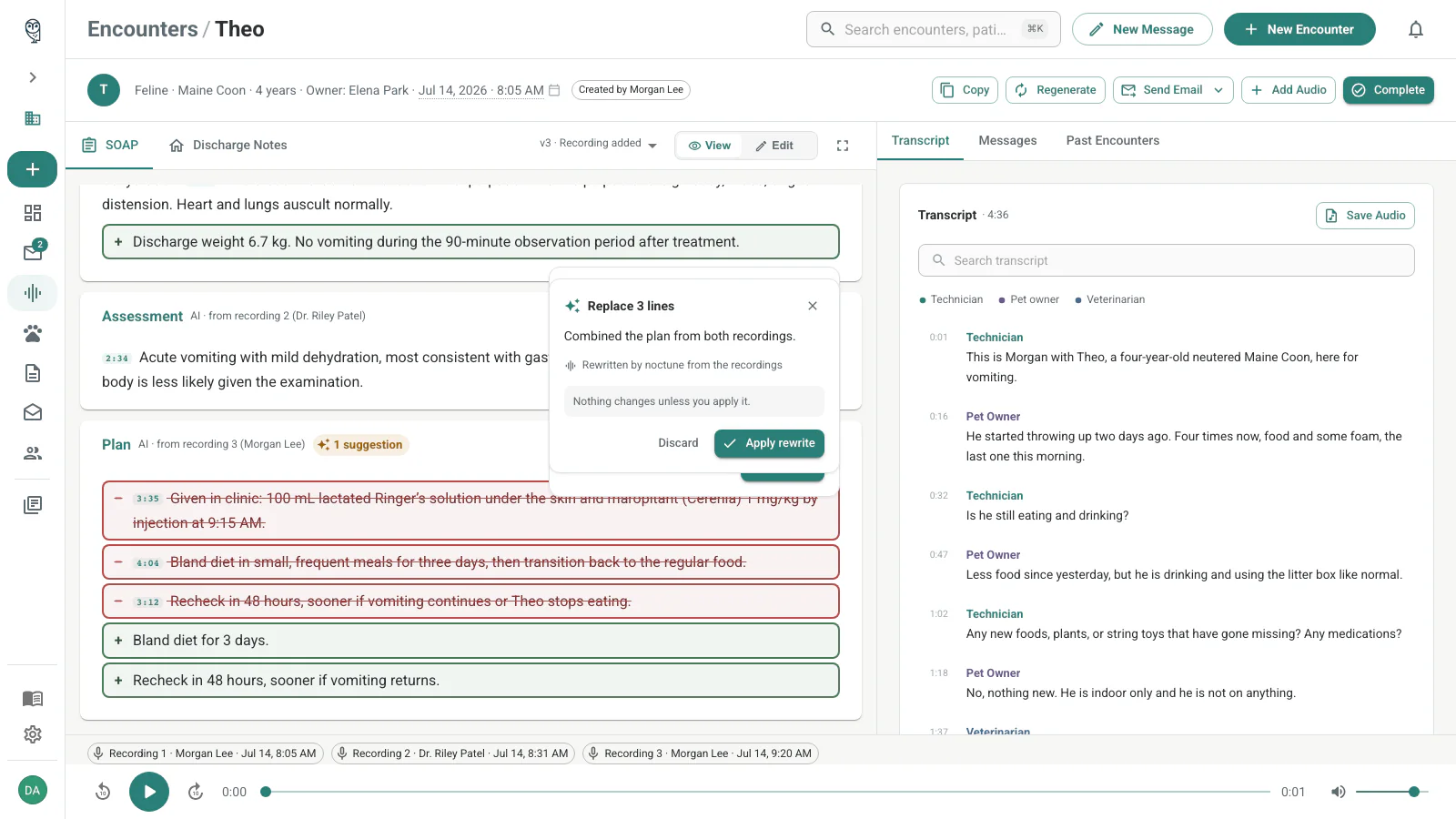
You’ll see the rewrite before anything changes. noctune highlights removed and added lines and opens a review card for the proposed rewrite.
- Apply rewrite saves the rewrite. Because it’s now your edit, the section locks.
- Discard leaves the section exactly as it was.
To regenerate a locked section, unlock it first. Regenerating a single section doesn’t use your note allowance.
Edit at the same time
Several people can have the same note open at once.
- Live updates. When anyone in the practice edits, locks, adds a recording, or restores a version, every open copy of the note updates on its own. You don’t need to refresh, even on a completed encounter.
- Who’s editing. When a teammate is editing a section, their initials and a line such as “Dr. Riley Patel is editing” appear on that card. This is a heads-up, not a lock. You can still edit.
- Different sections merge automatically. If you and a colleague save changes to different sections, both are kept. While you’re typing, noctune lets you know: “This note changed while you were editing. Your changes are kept and will be merged when you save.”
- Same section, you choose. If you both changed the same section, noctune shows that your colleague also edited it and lets you pick. Choose Keep yours or Keep theirs, or View both to compare them side by side first. Nothing is saved until you choose. If they locked the section, noctune requires an explicit Unlock and save before applying your change.
Version history and restore
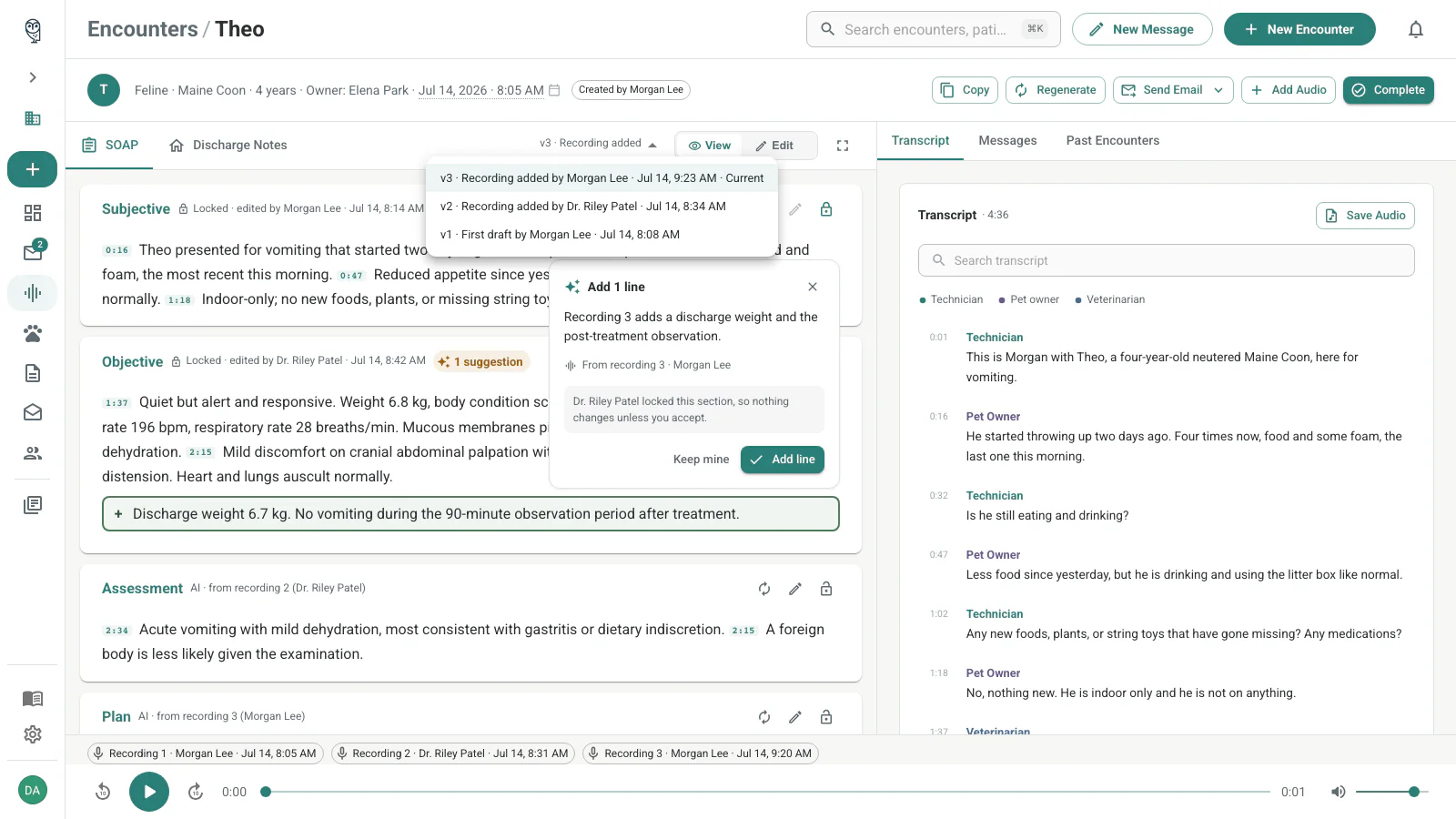
Each new recording, regeneration, or restore creates a new version of the note. Edits and saves stay within the current version. The version selector next to the SOAP and Discharge Notes tabs lists every version, newest first, with what made it, who, and when:
- v3 · Recording added by Morgan Lee · 9:23 AM
- v2 · Recording added by Dr. Riley Patel · 8:34 AM
- v1 · First draft by Morgan Lee · 8:08 AM
Other labels you may see are Regenerated and Restored v2. The current version is marked Current.
Choose an older version to read it. Older versions are read-only. To go back to one, choose Restore this version. noctune makes a copy of it the new current version, and every newer version stays in the history, so restoring never deletes anything.
- You can’t restore while a recording is still processing, because the update in progress would replace it. Wait for it to finish, then restore.
- Restoring copies the selected version’s section locks and attribution into the new current version. Review it before restoring: the note can differ from your team’s latest edits.
Check where every line came from
A note written by several people is only useful if you can trust it. In noctune, you can always go back to what was actually said and see who changed what.
- Go to the moment in the recording. Generated notes cite the transcript. Small time markers, such as 3:49, appear beside the text they support. Select one to play the audio from that moment, or hover over it to highlight the text it supports.
- Listen to the original audio. noctune keeps every recording with the encounter, so you can check a line against what was actually said. Older audio is archived rather than deleted, and the transcript and notes stay available either way. See Data Storage & Retention for how long audio stays playable and how Long-term Storage extends it.
- See who wrote each section. Recording chips show who added each recording and when. Section labels such as AI · from recording 2 (Dr. Riley Patel) or Locked · edited by Morgan Lee show whether a person or noctune wrote the text, and from which recording.
- See how the note changed. The version history shows every version, what created it, and who. Restoring an older version never deletes the newer ones.
- Review the practice audit log. Each new note version and each saved edit is recorded in the practice audit log with the person and time. The log records that a change happened, not the note’s text.
Related
- Review & Edit: check the draft against the recording, copy, and send discharge notes
- Practice & Team: invite technicians and veterinarians and see their roles